
How to Set Up Internet at Home: A Step-by-Step Guide
Moving into a new home means boxes to unpack, bills to update, and plenty of practical details to handle. Getting your internet up and running is usually high on the list.
The good news? Getting connected can be quicker and clearer than you might think. Once you know which providers cover your address, what speed suits your space, and whether you can handle the setup yourself, you are already well on your way.
Wondering how to set up internet from scratch? This guide by RateWorld covers the process step by step, from comparing connections and choosing a plan to plugging in your equipment and putting your Wi-Fi to the test.
Step 1: Check Which Internet Providers Serve Your Address
Before comparing prices, plans, or speeds, start with one simple detail: your address.
Internet options can change from one neighborhood to the next, and sometimes even from one street to another. Providers may also offer different connection types, including fiber, cable, DSL, fixed wireless, and satellite internet. So, a plan you spot online may not necessarily be available where you live.
That is where RateWorld makes the search simpler. Enter your address to see qualifying internet providers such as Spectrum, AT&T, Xfinity, Frontier, and more, then compare up to three options side by side to review prices, speeds, and plan features in one place.
With the right options in front of you, it becomes much easier to pick your plan and prepare for setup.
Step 2: Pick an Internet Plan That Fits Your Household
Faster is not always better, especially if you are paying for speed you rarely use. Instead, think about how many people share your connection and what they do online.
Browsing, banking, and checking email need less bandwidth, while streaming, studying, gaming, and working from home can put more pressure on your connection. A solo setup with a few screens will have very different demands from a busy household streaming and scrolling at the same time.
When comparing internet plans, consider:
- Download and upload speeds
- Data limits, if applicable
- Monthly price and promotions
- Equipment costs
- Contract terms
- Connection type
- Installation or activation fees
Matching your plan to your household habits can help you get the speed you need without paying for bandwidth you will not use. Not sure how much speed you need? Our guide to what is a good internet speed breaks down what different speeds can support.
Step 3: Decide Between Professional and Self-Installation
Once you have picked your provider and plan, it is time to plan your setup.
If your home is already wired and Wi-Fi-ready, your provider may offer a self-installation kit with all the equipment you need. Follow the setup steps to plug in, power up, and get connected.
If your property needs new cables or a connection point, professional installation may be the better pick. A technician can take care of the wiring so everything is connected and configured correctly.
Whichever way you get connected, check your provider’s instructions first, as the setup can vary by service and system.
Step 4: Find the Right Spot for Your Router
Where you place your router can play a big part in how well your Wi-Fi works throughout your home.
For stronger signals, choose a central, open spot rather than a cabinet, closet, or far corner. Thick walls, bulky barriers, and nearby electronics can weaken your Wi-Fi as it travels from room to room.
If possible, keep your router:
- Near the center of your home
- In an open, elevated spot
- Away from walls and large obstacles
- Away from electronics that may cause interference
For bigger homes, a mesh Wi-Fi system or compatible extender can help boost coverage beyond the router and reach rooms farther away.
A little smart setup and strategic positioning from the start can mean stronger Wi-Fi and fewer fixes later.
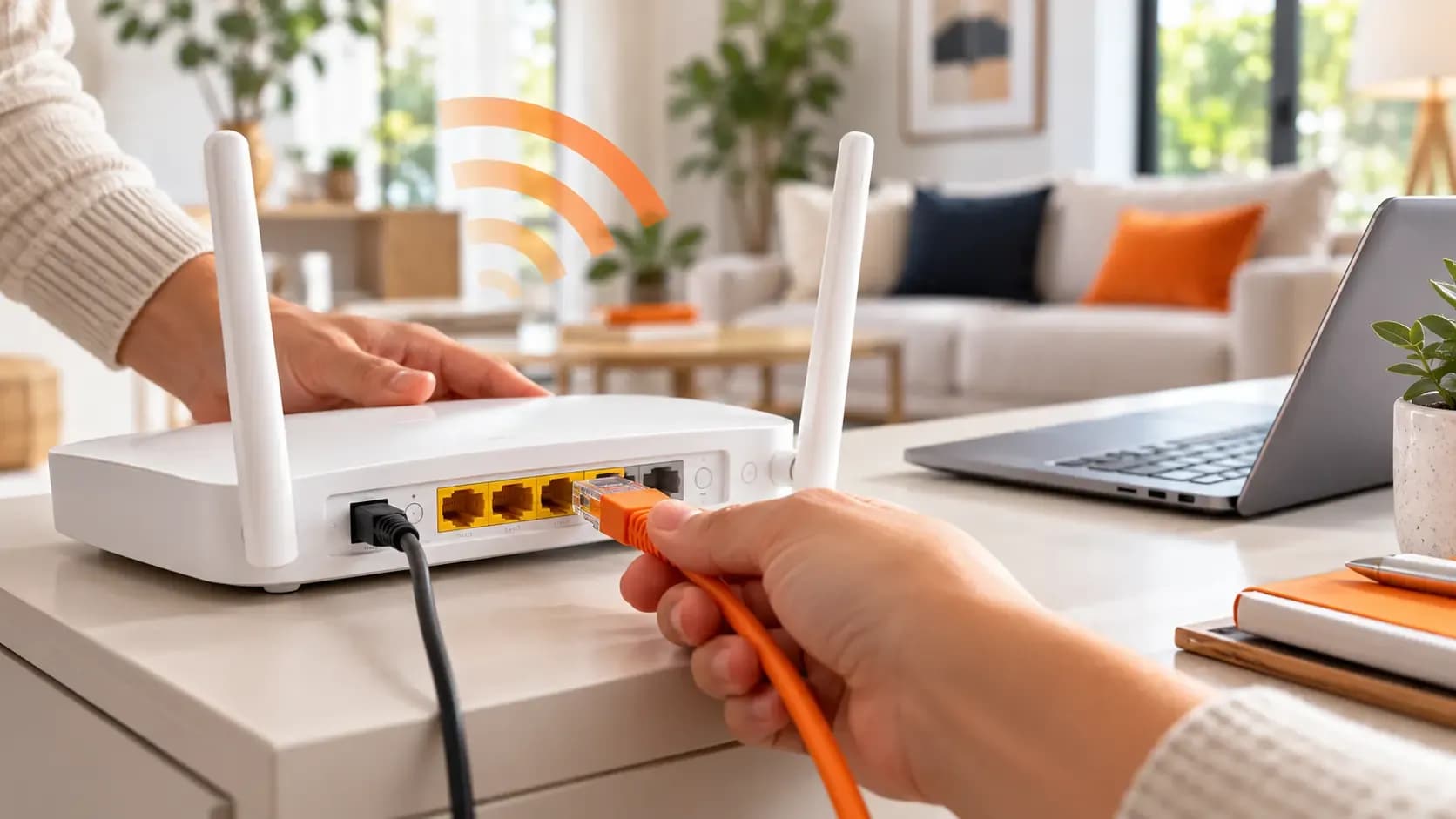
Step 5: Connect Your Modem and Router
Now for the cables and connections. When setting up home internet, the steps will depend on your provider, plan, and equipment. You may have a separate modem and router or a single gateway that combines both.
For a typical cable connection, connect your modem to the correct wall outlet, then plug it in, power it up, and give it a few minutes to connect. If you have a separate router, connect it to the modem with an Ethernet cable. For a fiber connection, a technician usually installs an optical network terminal (ONT), which then connects to your router.
Watch the status lights while your equipment powers up and pairs properly. Always follow your provider’s setup instructions too, as ports, plugs, and processes can vary.
Step 6: Activate Your Internet Service
Connected cables do not always mean a complete connection. Before you can browse, stream, or scroll, you may need to activate your internet service.
Depending on your provider, activation may happen through an app, automated phone service, or technician. Keep your account and activation details close, as you may need your service address, account number, or phone number.
Once everything is activated, put your connection to a quick test. Open a few websites to make sure your service is working.
Step 7: Set Up and Test Your Wi-Fi Network
With your internet active, it is time to name your network, set your security, and start connecting.
Your router should come with a default network name and password, but you can usually personalize both through your provider’s app or account portal. Pick a recognizable network name and a strong, secure password, then connect your phones, laptops, TVs, gaming consoles, and other smart devices.
Once your devices are connected, put your Wi-Fi through a room-to-room check. Test the connection in your bedroom, living room, home office, and other spaces where you regularly browse, stream, study, or scroll.
Common Internet Setup Problems and Simple Solutions
Even a careful connection can encounter the occasional hiccup.
If your internet is not working, start with a few quick connection checks. Make sure the cables are secure, the equipment has power, and your modem has had enough time to connect. If you use a separate modem and router, restart the modem first, wait for it to reconnect, then restart the router.
Wi-Fi strong in one room but struggling in another? Position and placement could be the problem. Move your router away from thick walls, closed cabinets, and nearby electronics.
Still stuck with your Wi-Fi setup at home? Check your provider’s setup and support steps for a quick fix. If the problem comes down to damaged lines or loose wiring, it may be time to call a technician to get your connection back on track.
Get Connected With RateWorld
Knowing how to set up home internet is only half of the process. First, you need to find a provider and plan that works at your address.
RateWorld makes finding the right connection quicker and clearer. Enter your ZIP code to see qualifying internet options available in your area, then compare up to three plans side by side. Review prices, speeds, and service details in one place instead of searching provider sites separately.
Once you have picked your preferred plan, call RateWorld and a Plan Pro can place your order with the provider and help arrange activation. Availability varies by address.
Ready to get connected? Compare internet plans with RateWorld and find the right provider, plan, and price for your home.
Frequently Asked Questions (FAQs)
How do I set up internet at home for the first time?
Start by checking which providers cover your address, then compare plans, prices, and speeds to find the right fit. Once you have picked your plan, choose between self-installation and professional setup, connect your cables, configure your Wi-Fi, and complete activation. Finish with a quick room-to-room test to make sure your signal stays strong and speeds stay steady throughout your home.
Can I set up internet myself?
In many cases, yes. If your home is already wired and ready, your provider may offer a self-installation kit with the equipment you need. Simply follow the provider’s steps to connect the cables and complete activation. If your home needs new wiring, professional installation may be the better choice.
Do I need both a modem and a router?
It depends on your connection and equipment. A modem brings the internet connection into your home, while a router shares the signal with your devices through Wi-Fi or Ethernet. Some providers keep things simple and space-saving with a single gateway that combines both functions.
Where should I put my Wi-Fi router?
For a stronger signal, place your router in a central, open spot. Keep it clear of cabinets, corners, and clutter, and away from electronics that could cause interference. Smart, central placement can help your Wi-Fi reach more rooms with fewer weak spots.
Which home internet providers can I compare with RateWorld?
RateWorld lets you explore qualifying plans from home internet providers such as Spectrum, Astound, AT&T, EarthLink, Frontier, Fidium Fiber, Verizon, and Xfinity. Enter your ZIP code to see which providers are available in your area, as availability varies by location.
